
For avid music fans and podcast listeners, Spotify is an indispensable everyday soundtrack. However, it is remarkably common to open your phone's storage diagnostic menu and discover that Spotify is quietly devouring 10, 15, or even 25 GB of internal flash memory. If your smartphone is choking on low disk space, clearing Spotify cache on iPhone and Android is one of the fastest, safest ways to reclaim multiple gigabytes without losing a single song from your saved playlists.
Executive Summary & Research Finding
Spotify taking up 15+ GB? Learn the difference between Spotify cache vs downloads, how to clear Spotify cache safely, and free up phone storage instantly.
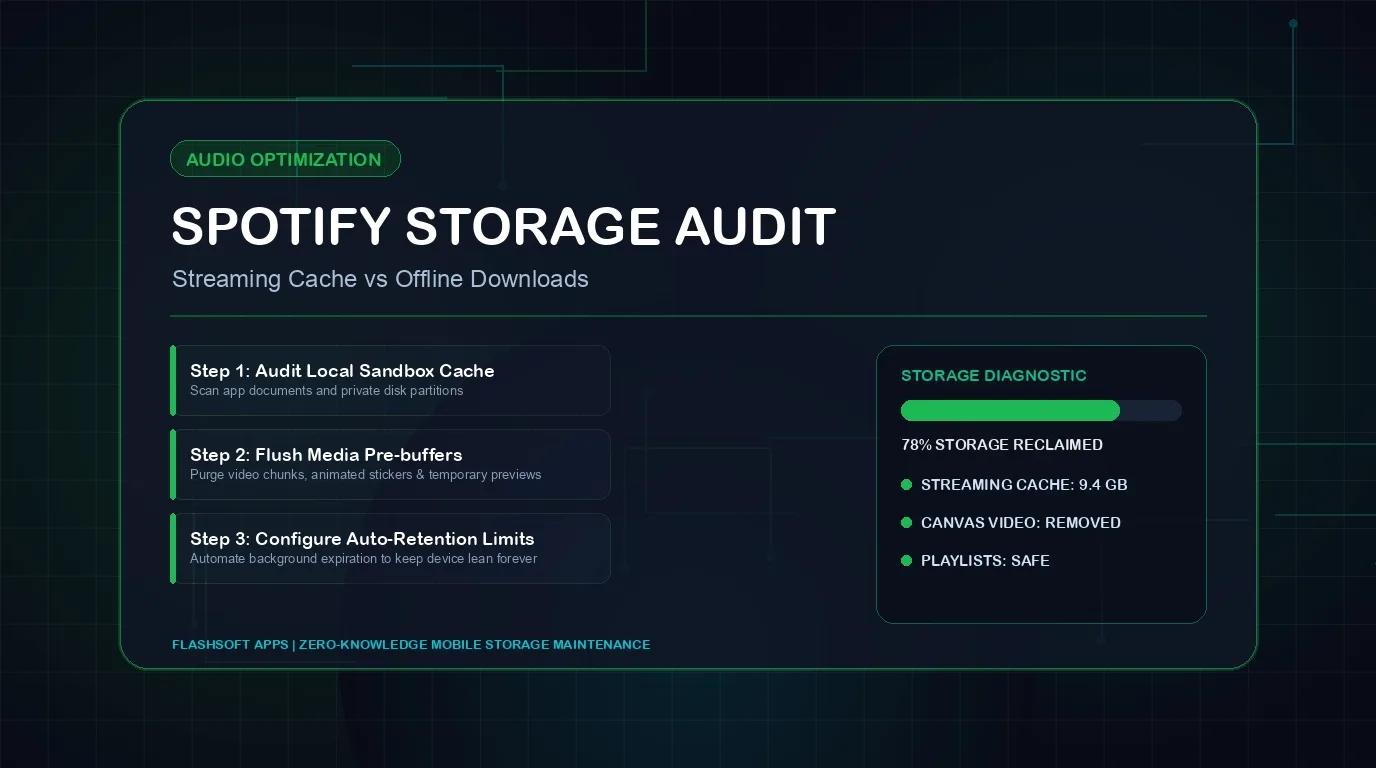
The secret behind Spotify's massive storage footprint lies in the technical difference between Cache and Downloads. Even if you never tap the 'Download' button on an album, Spotify's streaming engine automatically saves every track, podcast snippet, and animated Canvas video you stream into a local disk cache. This local caching ensures that when you skip back or replay a song, Spotify does not need to re-download the audio over your cellular network. Over months of listening, this cache expands relentlessly.
Spotify Cache vs Downloads: What Is the Difference?
Many users hesitate to touch Spotify's storage settings out of fear that they will delete their carefully curated offline library. The table below illustrates the exact differences between Spotify's storage categories:
| Category | How It Gets Created | Typical Footprint | What Happens When Cleared? | Will It Delete Your Offline Songs? |
|---|---|---|---|---|
| Streaming Cache | Automated temporary buffers of recently played songs, podcasts, and video Canvases | 3.0 GB – 10.0 GB | Reclaims immediate disk space; audio re-buffers from the internet when played | No! (Downloads stay 100% intact) |
| Downloaded Music | Albums and playlists you explicitly toggled for offline flight/car listening | 5.0 GB – 20.0 GB | Removes offline capability; requires re-downloading playlists over Wi-Fi | Yes (Only if you tap 'Remove all downloads') |
| Auto-Downloaded Podcasts | New podcast episodes automatically fetched in the background | 2.0 GB – 6.0 GB | Removes unplayed podcast audio files; show subscriptions remain saved | Yes |
| Album Artwork & Metadata | High-resolution album covers, artist portraits, and lyrics data | 300 MB – 800 MB | Flushes thumbnail index; re-fetches imagery when browsing | No |
How to Clear Spotify Cache (Without Deleting Offline Songs)
Spotify provides a dedicated in-app feature specifically designed to purge temporary audio buffers while leaving all of your intentionally downloaded music untouched on both iOS and Android:
- Open the Spotify app on your iPhone or Android device.
- Tap your Profile picture or Avatar in the top-left corner.
- Tap Settings and privacy (gear icon).
- Scroll down to the Storage category (on iOS, look under Storage; on Android, scroll to the bottom of the Settings page).
- Examine the visual color-coded storage bar showing Other apps, Downloads, Cache, and Free space.
- Tap the button labeled Clear cache.
- A confirmation dialogue will appear: 'Your downloads won't be affected.' Tap Clear cache to confirm.
How to Remove Unneeded Offline Downloads
If you already cleared your streaming cache but Spotify is still consuming 15+ GB of storage, the culprit is your downloaded music collection. Over the years, many users download massive 500-track playlists that they no longer listen to.
- In Spotify Settings >Storage, locate the option Remove all downloads.
- Tapping this will remove all downloaded audio files from your device while keeping every playlist, like, and favorite track intact in your library.
- Alternatively, navigate to Your Library > Downloaded filter, tap into obsolete playlists, tap the green downloaded arrow icon, and select Remove to clean specific albums selectively.
Podcast Auto-Download Storage Trap
By default, Spotify may automatically download the latest episodes of every podcast you follow. If you follow 10 weekly video podcasts, this can consume 3 to 5 GB every week. Go to Your Library > Podcasts, tap into each followed show, tap the Gear icon, and turn OFF 'Auto-download episodes'.
How to Prevent Spotify from Hogging Storage in the Future
- Adjust Audio Download Quality: In Settings > Audio Quality, change Download quality from 'Very High' (320 kbps) to 'High' (160 kbps). This cuts the storage footprint of your offline library in half without noticeable audio loss on mobile headphones.
- Disable Canvas Looping Videos: In Settings > Playback, toggle off Canvas. This stops Spotify from continuously downloading and looping visual video clips during song playback.
- Turn Off 'Download Using Cellular': Prevent accidental large downloads when you are away from home Wi-Fi networks.
- Monthly Cache Audit: Tap 'Clear cache' once a month to keep streaming buffers from building up past 2 GB.
Take Back Your Smartphone's Storage Capacity
Reclaiming 10 to 15 GB from Spotify provides substantial relief for your device. But audio streaming is only one part of the equation—unmonitored system logs and forgotten video clips frequently throttle performance. For deeper system optimization, check out our guide on how to clear iPhone system data storage.
To keep your mobile device clean, fast, and free of unnecessary junk files, download Clearly Smart Storage Cleaner. Its smart scanning engine pinpoints bloated duplicate media, identifies heavy files, and helps you free up storage and clean phone memory in seconds.
Instant iPhone Storage & iCloud Savings Calculator
Adjust your photo library size, duplicate estimates, and 4K video count to calculate how many gigabytes you can safely reclaim.