
For millions of daily active users, Snapchat is the go-to app for spontaneous photo messaging, Bitmoji communication, and augmented reality filters. However, an unexpected consequence of using the platform regularly is severe storage exhaustion. If your phone is running out of space, clearing Snapchat cache on iPhone and Android can reclaim between 3 and 10 GB of flash memory in seconds without jeopardizing your streaks, your account status, or your precious saved Memories.
Executive Summary & Research Finding
Snapchat cache taking up 8+ GB? Learn how to clear Snapchat cache, purge heavy AR lens data, and manage Memories safely on iPhone and Android.
Unlike simple text messengers, Snapchat is a heavy multimedia and real-time computer vision engine. Every time you scroll through the camera carousel, Snapchat downloads complex 3D AR Lens models, facial tracking assets, and sound effects directly to your device. Combine that with prefetched Spotlight videos, Discover publisher feeds, and thumbnail previews for thousands of old Snaps in your Memories archive, and Snapchat quickly ranks among the top storage hogs on your smartphone.
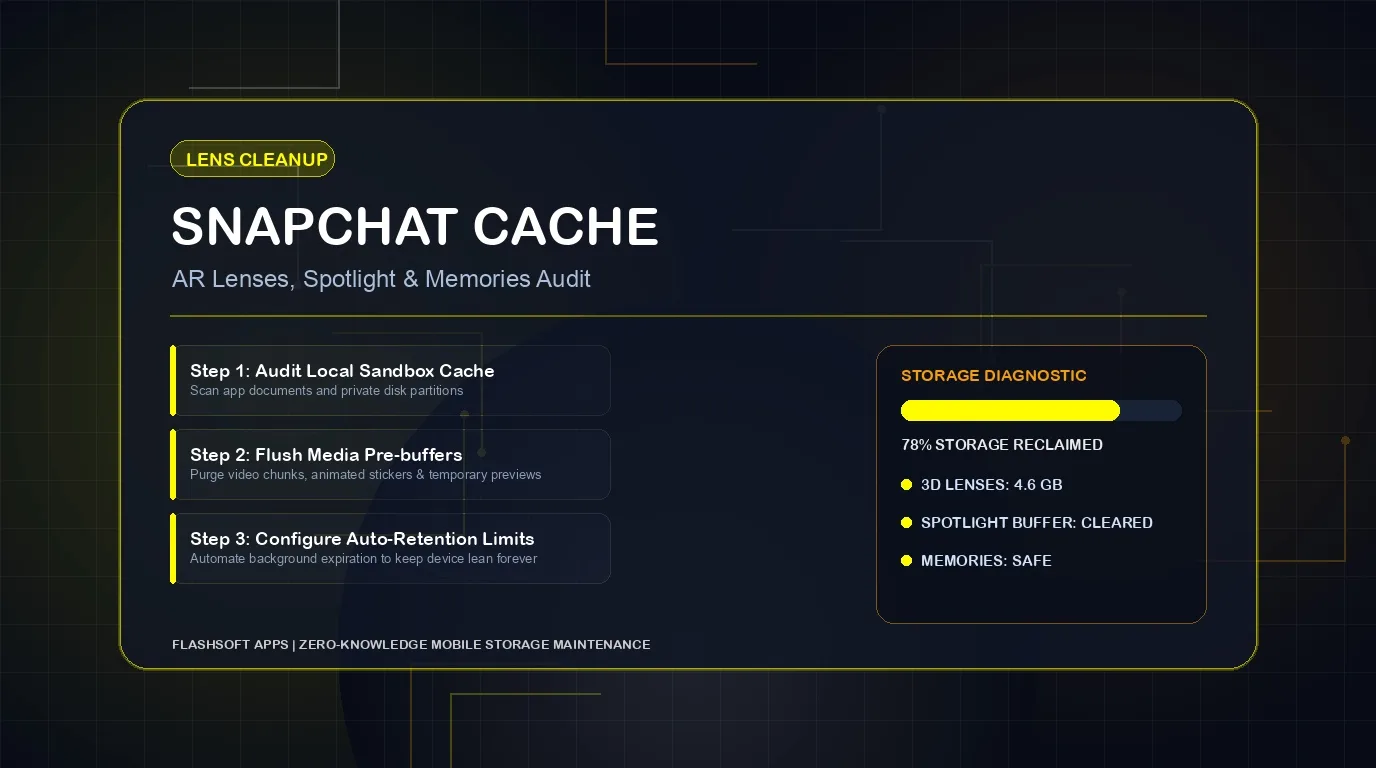
What Exactly Lives Inside Snapchat Cache?
Snapchat provides a clear separation between temporary cached data and your permanent account assets. Understanding what gets purged gives you total peace of mind when tapping the cleanup button:
| Data Category | What Is Stored | Typical Size (6 Months) | Impact of Clearing | Will It Delete Your Memories? |
|---|---|---|---|---|
| AR Lens & Filter Assets | 3D face meshes, animations, sound effects, interactive games | 1.5 GB – 3.5 GB | Frees massive storage; lenses re-download on tap when selected | No (100% Safe) |
| Spotlight & Discover Previews | Short-form video pre-buffers and publisher story chunks | 2.0 GB – 5.0 GB (Heaviest) | Removes temporary video files instantly | No (100% Safe) |
| Bitmoji 3D Avatar Cache | Rendered poses, sticker assets, friend Bitmoji combinations | 250 MB – 800 MB | Re-renders your avatar upon next app launch | No |
| Memories Local Cache | Offline thumbnail previews of your cloud-saved Snaps | 1.0 GB – 3.0 GB | Clears local preview index; master Snaps remain on Snapchat cloud | No (Safe) |
| Chat Media Buffers | Audio notes, shared photos, and opened video messages | 400 MB – 1.2 GB | Clears expired temporary media from RAM and flash memory | No |
Step-by-Step: How to Clear Snapchat Cache Safely
Snapchat is one of the few major social platforms that includes a dedicated, highly granular cache management interface inside the app on both iOS and Android. Follow these steps:
- Launch the Snapchat app on your iPhone or Android device.
- Tap your Bitmoji or Profile icon in the top-left corner.
- Tap the Gear icon (Settings) in the top-right corner.
- Scroll all the way down to the section labeled Account Actions (or Privacy Controls).
- Tap Clear Cache.
- A confirmation prompt will appear stating: 'All of your caches will be cleared and Snapchat will restart. Your Memories backup won't be deleted.'
- Tap Clear. The app will close and restart in a refreshed, featherweight state.
How to Clear Specific Caches in Snapchat
If you don't want to clear everything at once, iOS and Android versions often allow you to selectively purge individual categories:
- Clear Lens Cache: Purges cached augmented reality filters while preserving your chat history and Bitmoji poses.
- Clear Voice Scan Cache: Deletes local audio training data and voice command history.
- Clear Browser Cache: Removes cookies and cached web pages stored from external web links opened inside Snapchat.
- Clear Places Cache: Removes locally cached map tiles and restaurant recommendations from the Snap Map.
My Eyes Only & Memories Clarification
Many users hesitate to clear cache because they fear losing their private 'My Eyes Only' vault or saved Memories. Rest assured: your Memories and My Eyes Only contents are securely backed up on Snapchat's encrypted cloud servers. Clearing cache merely dumps the temporary local thumbnail cache, forcing Snapchat to re-stream them on demand.
How to Prevent Snapchat from Hoarding Storage
To keep Snapchat from ballooning back to 8 GB within a few weeks, adjust these essential settings:
- Set Save Button to 'Memories Only': Go to Settings > Memories > Save Button and choose Memories instead of Memories & Camera Roll. This prevents Snapchat from saving every snap twice, halving media storage consumption.
- Disable Smart Backup: In Settings > Memories, turn off Smart Backup over mobile data if you have limited cellular allowances.
- Turn On Travel Mode / Data Saver: In Settings > Additional Services > Manage, enable Data Saver to stop automatic pre-loading of Stories and Spotlight videos.
Eliminate Photo and Video Duplicates Across Your Phone
Flushing Snapchat's cache provides instant storage relief, but social media apps frequently export duplicates, screenshots, and reaction videos into your primary photo gallery. For tips on streamlining your device's media library, read our guide on how to organize and clean up iCloud photos.
To rapidly conquer photo gallery clutter, download Swipe Photo Cleaner App Wipe AI. Its smart AI clustering groups similar photos and burst shots, while its swipe-based interface allows you to swipe left to delete blurry photos, remove duplicate photos, and clean camera roll junk in minutes.
Instant iPhone Storage & iCloud Savings Calculator
Adjust your photo library size, duplicate estimates, and 4K video count to calculate how many gigabytes you can safely reclaim.