
Every time you type a text message, search query, medical symptom, or login credential on your smartphone, your virtual keyboard is quietly observing and logging your patterns. If you are concerned about data privacy or notice that your keyboard has begun suggesting embarrassing typos, obsolete email addresses, or ex-partners' names, clearing your keyboard cache and autocorrect dictionary on iPhone and Android is a vital maintenance routine.
Executive Summary & Research Finding
Clear keyboard cache on iPhone & Android. Learn how to reset iOS keyboard dictionary, purge Gboard and SwiftKey prediction models, and protect your privacy.
Whether you rely on Apple's default iOS keyboard, Google's Gboard, Microsoft SwiftKey, or Grammarly, all modern smartphone keyboards utilize local natural language processing (NLP) and machine learning models to predict your next word. To achieve this, the software builds a persistent personalized dictionary and local cache that records typed phrases, clipboard history snippets, GIF searches, and custom slang. Beyond privacy concerns, corrupted keyboard dictionaries frequently cause annoying typing lag and system-wide keyboard stuttering.
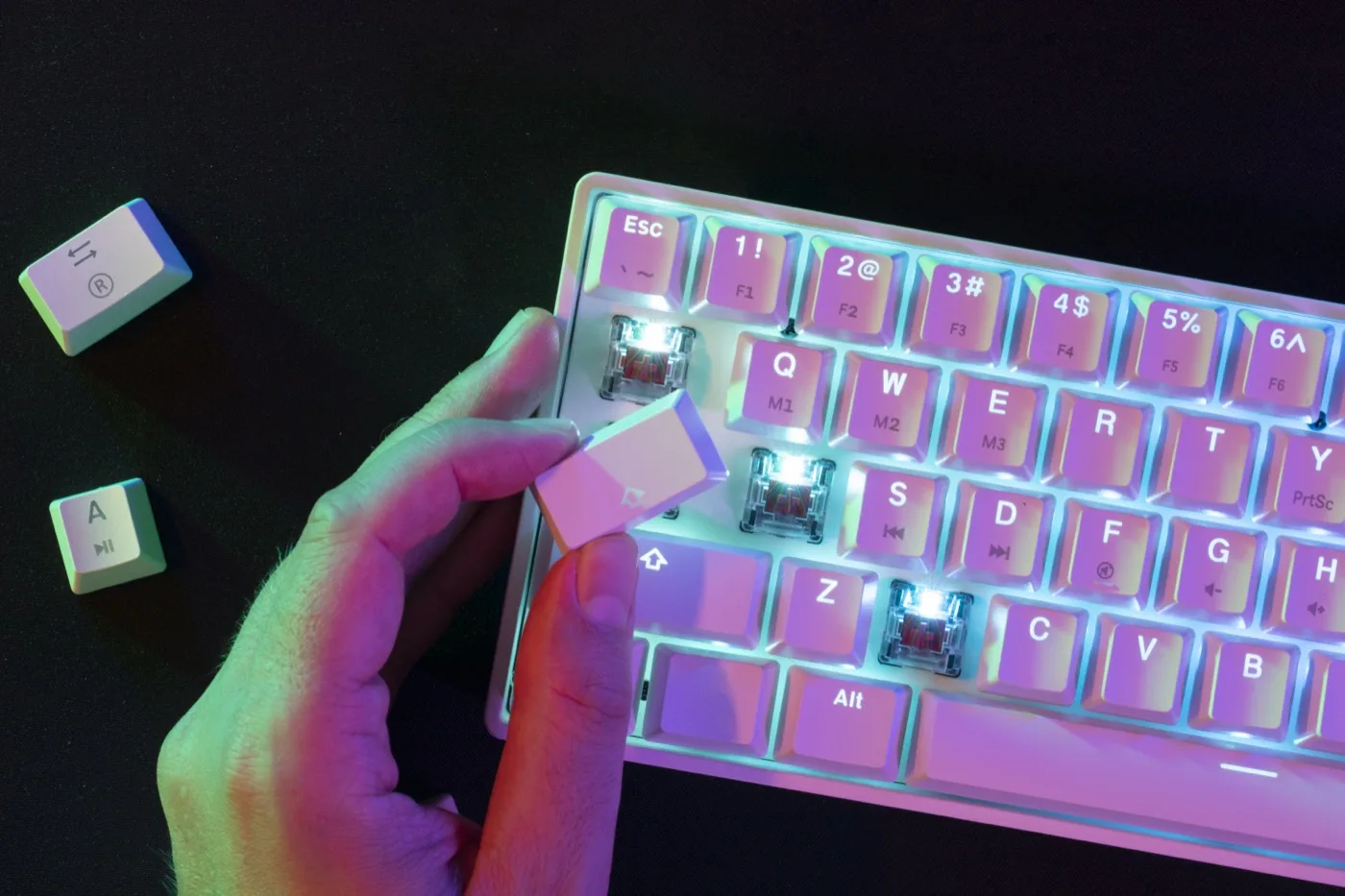
What Does Your Mobile Keyboard Actually Remember?
Before resetting your keyboard, examine the types of sensitive data logged across the most popular keyboard engines:
| Keyboard App | Data Types Stored Locally | Cloud Sync Behavior | Typical Cache Size | Impact of Resetting |
|---|---|---|---|---|
| Apple iOS Keyboard | Learned words, typo overrides, frequent names, contact nicknames | Synced via iCloud Keychain across Apple devices | 50 MB – 150 MB | Resets keyboard to factory factory spelling suggestions |
| Google Gboard | Search history, voice typing models, GIF/sticker cache, learned slang | Optionally synced to Google account profile | 200 MB – 600 MB | Removes search history and personalization models |
| Microsoft SwiftKey | Heatmap typing habits, predictive n-gram language models, clipboard pins | Synced via Microsoft Account | 150 MB – 400 MB | Clears language prediction cache; resets heatmaps |
| Grammarly Keyboard | Tone suggestions, grammar correction logs, document snippet analysis | Cloud-processed with local cache | 100 MB – 300 MB | Clears local session logs |
How to Reset Keyboard Dictionary & Autocorrect on iPhone (iOS)
Apple includes a dedicated factory reset mechanism for its native keyboard dictionary. This restores pristine autocorrect accuracy without affecting your personal photos, apps, or device settings:
- Open Settings on your iPhone.
- Tap General > scroll to the very bottom and tap Transfer or Reset iPhone.
- Tap Reset at the bottom of the screen.
- From the pop-up menu, select Reset Keyboard Dictionary.
- Enter your device passcode when prompted, then tap Reset Dictionary.
- Your iPhone will immediately delete all learned custom words and typos, restoring Apple's original factory spelling database.
How to Clear Gboard Cache and Learned Words (iOS & Android)
If you use Google's Gboard on your device, clearing its cache removes saved search history, voice dictation models, and GIF caches:
On iPhone (iOS):
- Open the standalone Gboard app icon on your home screen.
- Tap Keyboard settings > tap Clear my dictionary.
- Tap Search settings and tap Clear Gboard search history to delete cached GIF and sticker searches.
On Android:
- Open Settings > Apps > Gboard > Storage & Cache.
- Tap Clear Cache to immediately dump temporary image and sticker assets.
- To clear learned words: open Gboard Settings >Advanced > Delete learned words and data, then confirm.
How to Clear Microsoft SwiftKey Cache
SwiftKey features deep prediction models that can be purged with a few taps:
- Open the SwiftKey app on your smartphone.
- Tap Account (or Data settings).
- Tap Clear personalized data (or Remove my data) and confirm.
- This wipes SwiftKey's local prediction model, allowing the algorithm to relearn your typing habits from a fresh slate.
Third-Party Keyboard 'Full Access' Security Tip
When installing third-party keyboards like Gboard or SwiftKey on iOS, Apple asks if you want to grant 'Allow Full Access'. Granting full access permits the keyboard developer to send your keystrokes to their cloud servers. If privacy is paramount, revoke full access in Settings > General > Keyboard > Keyboards > [Keyboard Name] > toggle OFF 'Allow Full Access'.
Three Rules for Better Keyboard Hygiene
- Audit Text Replacements: Go to Settings > General > Keyboard > Text Replacement to delete obsolete shortcuts or duplicate text expansions.
- Clear Clipboard Regularly: Never leave credit card numbers or sensitive passwords sitting in clipboard managers on mobile keyboards.
- Reset Annually: Performing a keyboard dictionary reset once a year keeps autocorrect sharp and prevents typing freezes.
Protect Your Device's Privacy and Storage
Resetting your keyboard dictionary eliminates nagging autocorrect glitches and safeguards your personal typing history. But maintaining overall smartphone health requires regular attention to camera roll clutter, duplicate media files, and hidden system logs. For more decluttering strategies, read our guide on how to free up smartphone storage safely.
To keep your device running fast, lean, and clutter-free, install Clearly Smart Storage Cleaner. Its smart diagnostic tools spot redundant media files, identify heavy duplicate photos, and allow you to free up storage and clean phone memory in seconds.